TI 84 Calculator Online: Free Graphing Calculator
Introduction of Online TI 84 Calculator
This TI 84 Calculator above gives you a convenient way to work through math problems directly in your browser. You can use it for calculations involving numbers, functions, equations, graphing, and other supported operations without switching to another page.
Enter your expression using the on screen keys, choose the function you need, and run the calculation to see the result. For graphing or more advanced work, use the available calculator controls just as you would with a graphing device.
Because it runs online, you can access the tool from a supported device with a modern web browser. There is no need to install separate software simply to get started.
How to Use the Online TI 84 Plus CE Calculator
Using the calculator is straightforward. Enter your problem, select the function you need, and view the result directly in your browser.
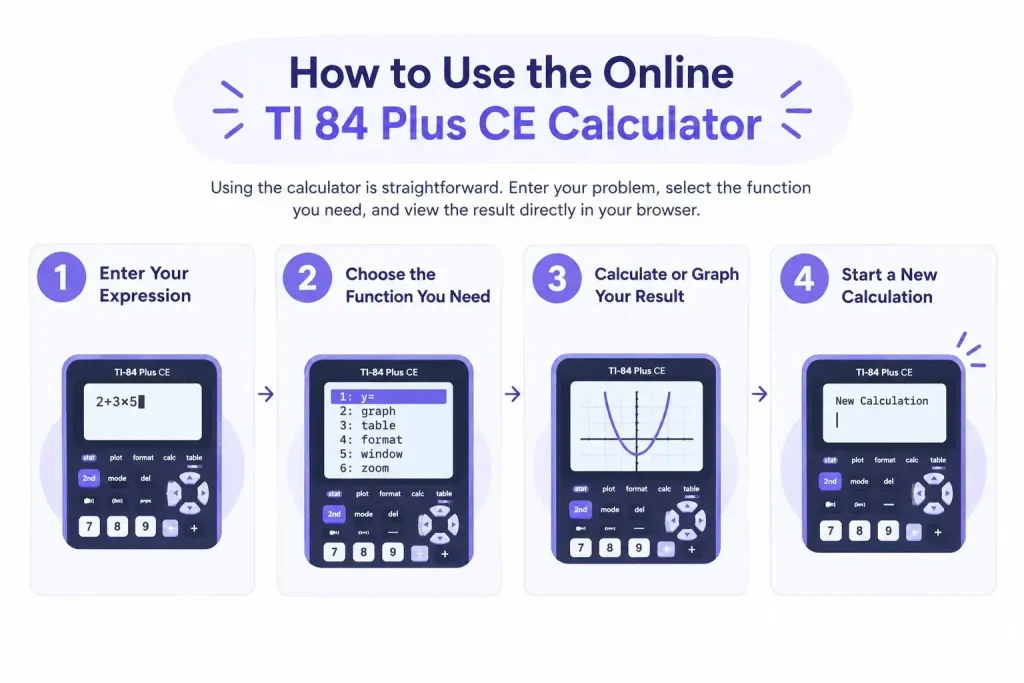
Enter Your Expression
Use the on screen keys to enter numbers, symbols, equations, or functions. Check the expression before calculating to make sure everything is entered correctly.
Choose the Function You Need
Select the function for your math problem. You can use basic calculations, graphing, and other supported math functions when needed.
Calculate or Graph Your Result
Run the calculation to see the answer on the display. If you are working with an equation or function, use the graphing option to view it on the screen.
Start a New Calculation
When you are finished, clear the current entry and begin a new problem. You can continue working through different calculations without leaving the page.
What Work You Can Do With This TI 84 Calculator?
This online calculator is designed for a range of common math tasks, from simple arithmetic to more advanced problems involving functions, equations, and graphing. The available options depend on the controls provided in the calculator interface.
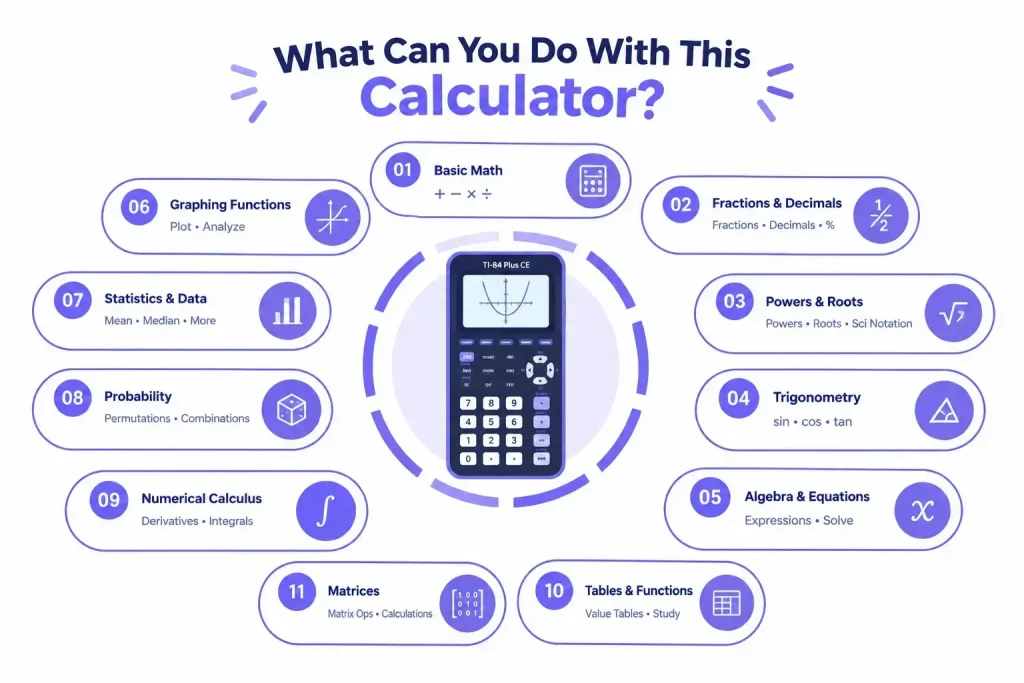
Basic Math and Arithmetic
Use the calculator for everyday arithmetic such as addition, subtraction, multiplication, and division. Enter the numbers through the on screen keys and calculate the result directly in your browser.
Fractions, Decimals and Percentages
Work with fractions, decimals, and percentages when the required functions are available in the calculator. This can help with homework, classroom exercises, and quick calculations and checks.
Powers, Roots and Scientific Notation
Problems involving powers and roots can be entered using the available math functions. Scientific notation can also be useful when working with very large or very small numbers.
Trigonometric Functions
For problems involving angles and trigonometry, use the supported trigonometric functions available in the calculator. These can be useful in algebra, geometry, science, and other math work.
Algebra and Equations
The calculator can be used for algebraic expressions and supported equations. Enter the expression using the available keys and use the appropriate function to work through the problem.
Graphing Functions
When graphing controls are available, you can enter a supported function and view its graph on the calculator display. This makes it easier to see how a function behaves rather than working only with its numerical values.
Statistics and Data
Supported statistical functions can help with calculations involving numerical data. These features can be useful for statistics exercises and other problems where several values need to be analyzed.
Probability
Probability problems can be handled when the relevant probability functions are available in the calculator. Use the supported options that match the type of calculation you are working on.
Numerical Calculus
For calculus work, use the numerical functions provided by the calculator for supported problems. These can be helpful when working with values related to derivatives, integrals, or other numerical calculus tasks.
Table of Values
Use a table to view values from a supported function at different inputs. This helps you compare results, check calculations, and see how the function changes as the input value changes over time.
Functions and Variables
Use supported functions and variables to work with expressions and repeated calculations. This can make it easier to enter values, reuse them in different problems, and work with mathematical functions.
Matrices
Matrix calculations are available only if the calculator interface provides the required matrix functions. When supported, they can be used for common matrix operations and related math problems.
TI 84 Graphing Calculator
Graphing tools make it easier to study equations and functions visually. You can enter a supported equation, view its curve, and use the available graph controls to examine specific points or values.
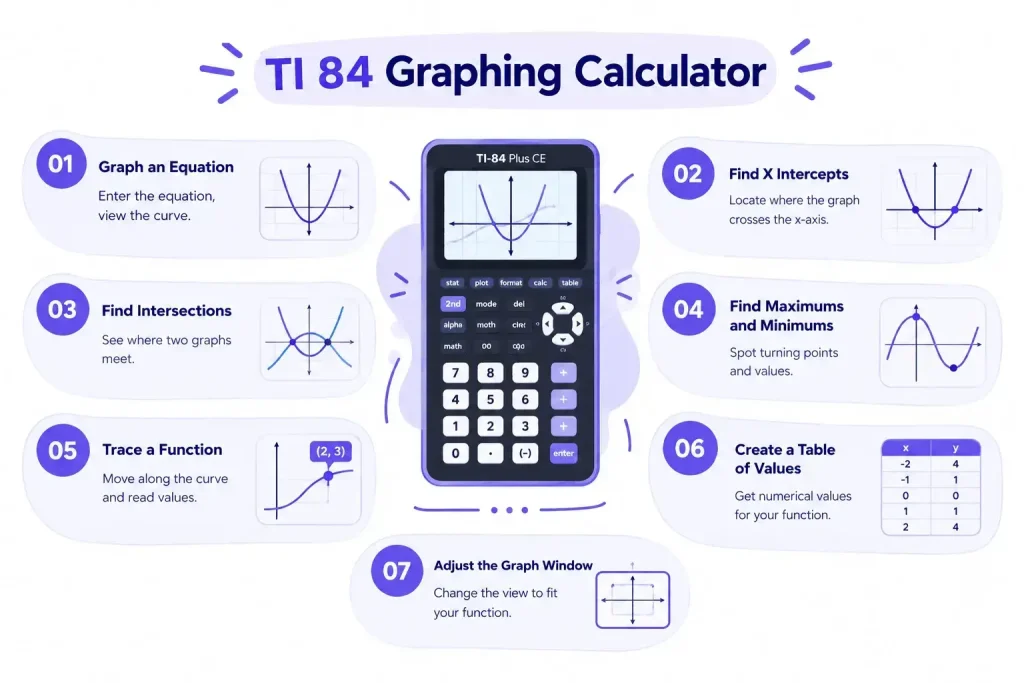
Graph an Equation
Enter the equation or function using the available input keys, then use the graphing option to display it. The graph gives you a visual way to understand how the function changes as the input changes.
Find X Intercepts
For supported functions, you can use the available graph or calculation features to locate points where the graph crosses the x axis. These points can help when solving equations or checking algebra work.
Find Intersections
If the calculator supports the required graphing operation, you can compare two plotted functions and find where their graphs meet. An intersection represents a common point shared by the two functions.
Find Maximums & Minimums
Use graphing features to identify maximum or minimum values at turning points. This can help when studying functions or checking your calculus work and results with more accuracy.
Trace a Function
The trace option lets you move along a plotted function and inspect values at different positions. This can help you read coordinates and examine the function without calculating every value manually.
Create a Table of Values
A table provides numerical values for a supported function at selected input values. You can use these values alongside the graph to understand how the function behaves.
Adjust the Graph Window
The graph window controls determine which part of the coordinate plane is visible. Adjusting the viewing range can help when a function is too large, too small, or difficult to see within the current display.
TI 84 Calculator Online for Math and Science
Students can use an online calculator for many types of school and college work. Depending on the functions available in the tool, it can help with algebra, trigonometry, statistics, calculus, probability, and numerical problems used in science courses.

Algebra
Use supported algebra functions to work with expressions, equations, powers, roots, and other common problems. It can also help students check their calculations while studying new concepts.
Trigonometry
Trigonometric functions are useful for working with angles and problems involving sine, cosine, and tangent. These calculations often appear in geometry, physics, and higher level math.
Statistics
Statistical functions can help students work with numerical data and common statistics problems. They are useful for checking results when studying data sets in a math or statistics class.
Probability
Probability calculations can be useful for school assignments and statistics exercises. Enter the required values and use the available probability functions that match the problem.
Calculus
For supported calculus functions, the calculator can assist with numerical problems involving functions, derivatives, and integrals. Students can use the results to check their work while learning calculus concepts. It can help compare results and understand how values affect calculations when practicing calculus.
Science and Engineering Calculations
Math calculations are part of many science and engineering subjects. Depending on the available functions, the calculator can be used for numerical work involving formulas, measurements, scientific notation, and other supported calculations.
College and School Math
From basic classroom exercises to more advanced college math, an online calculator can provide a convenient way to check calculations in a browser. Students can use it alongside their regular study materials when a calculator is permitted for the work they are doing.
TI 84 Plus CE Features and Functions
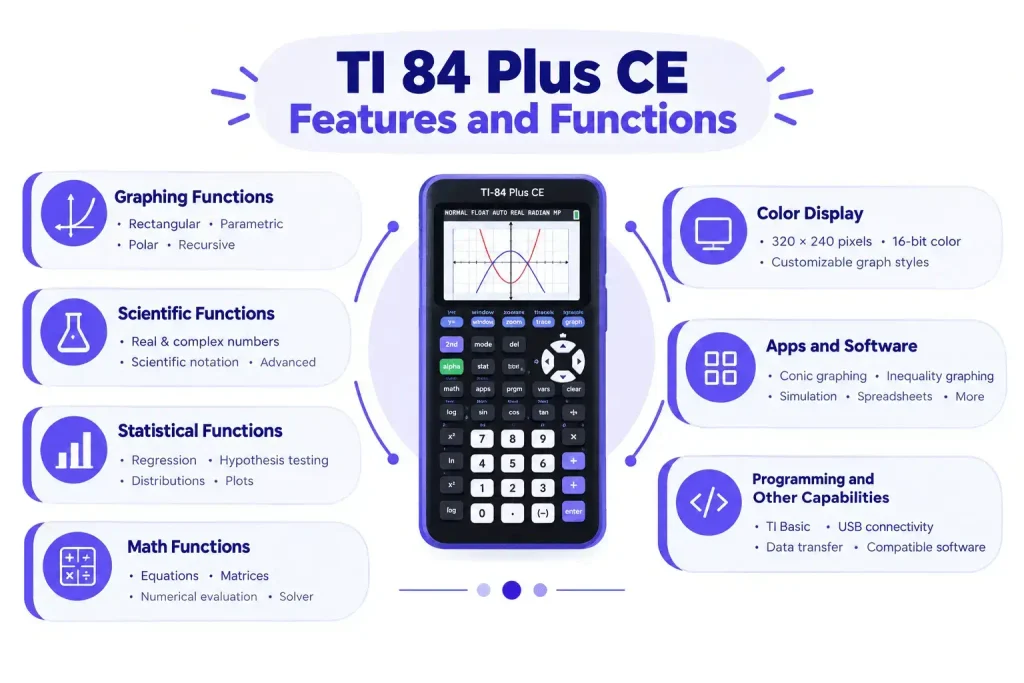
The TI 84 Plus CE is designed for graphing and a wide range of math and science work. Its built in functions cover graphing, statistics, matrices, probability, equations, and other common calculations used by students.
Graphing Functions
The calculator supports rectangular, parametric, polar, and recursive functions. Save multiple functions, view graphs, use graph styles, and check numerical values in a table. Graph analysis includes roots, maximums, minimums, integrals, and derivatives.
Scientific Functions
Scientific calculations include support for real and complex numbers, along with numerical results displayed with scientific notation when appropriate. The calculator also provides advanced functions through its menus and calculator catalog.
Statistical Functions
Statistics tools support one variable and two variable analysis, several regression models, statistical plots, hypothesis testing, confidence intervals, and analysis of variance. Probability distribution functions are also included for supported statistical work.
Math Functions
The available math functions cover areas such as equations, numerical evaluation, matrices, and other common mathematical operations. The calculator also includes an equation solver that can solve numerically for different variables in a supported equation.
Color Display
The TI 84 Plus CE has a backlit 320 by 240 pixel display with 16 bit color. Function graphs can use different colors, while graph axes and grids can also be customized to make multiple graphs easier to distinguish. The screen also keeps menus, tables, and calculations clear for daily use!
Apps and Software
The calculator supports apps that add math and science functionality. Available apps include conic graphing, inequality graphing, probability simulation, science, spreadsheets, and other subjects. Texas Instruments also provides software for connecting the calculator to a computer easily.
Programming and Other Capabilities
TI 84 Plus CE models support TI Basic programming, allowing users to create and run programs on the calculator. The device also supports USB connectivity for transferring data and working with compatible software and applications.
TI 84 Plus vs TI 84 Plus CE
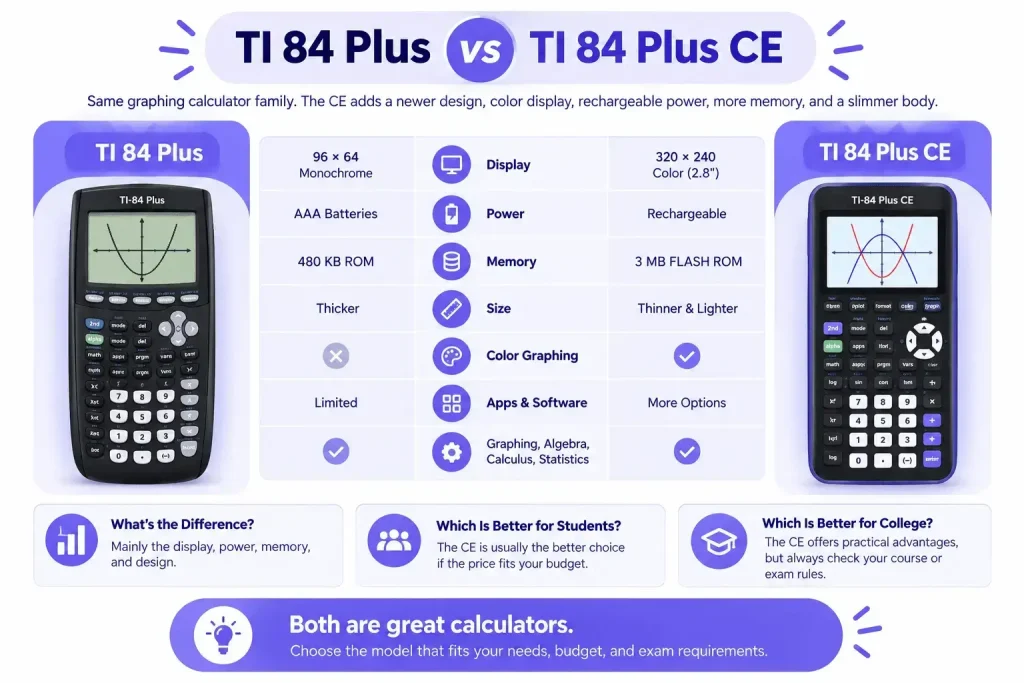
The TI 84 Plus and TI 84 Plus CE belong to the same graphing calculator family, so they share many of the functions students already expect for math and science work. The CE version adds a newer design, color display, rechargeable power, more memory, and a slimmer body.
What Is the Difference?
The main difference is the hardware and display experience. The standard TI 84 Plus has a smaller monochrome display and uses AAA batteries, while the TI 84 Plus CE has a backlit color display and a rechargeable battery. The CE model is also thinner and lighter than the earlier TI 84 Plus.
Display and Hardware
The TI 84 Plus uses a 96 by 64 pixel display, while the TI 84 Plus CE has a 320 by 240 pixel, 2.8 inch color display with 16 bit color. The CE also has 3 MB of FLASH ROM and a rechargeable battery, compared with 480 KB of ROM and AAA battery power on the TI 84 Plus.
The difference is noticeable when working with graphs. The color display on the CE makes it easier to distinguish between multiple graphs and data points, while its slimmer body is easier to carry between classes.
Functions and Software
Both models provide the core graphing calculator functionality used for subjects such as algebra, trigonometry, calculus, and statistics. The CE adds features such as color graphing, more storage, and a newer display system while keeping the familiar menu structure and navigation of the TI 84 Plus family.
The CE can also work with supported apps and software, giving students additional options for math and science activities.
Which Model Is Better for Students?
For a student buying a calculator today, the TI 84 Plus CE is generally the more convenient choice if the price fits the budget. Its color screen, rechargeable battery, lighter design, and larger storage make everyday classroom use easier. Texas Instruments lists the CE for courses ranging from algebra and trigonometry through calculus, statistics, college math, and science.
The older TI 84 Plus can still make sense if a student already owns one or has access to one through school. Its core graphing functionality remains useful for many common math assignments.
Which Model Is Better for College?
For college students, the TI 84 Plus CE offers practical advantages when working with graphs, statistics, and more advanced math. The color display can make multiple graphs easier to read, while the rechargeable battery removes the need to keep replacing AAA batteries.
The better choice can also depend on the course and exam rules. Before buying a calculator for a specific class or test, check which models are permitted.
TI 84 Calculator Online vs Physical Calculator
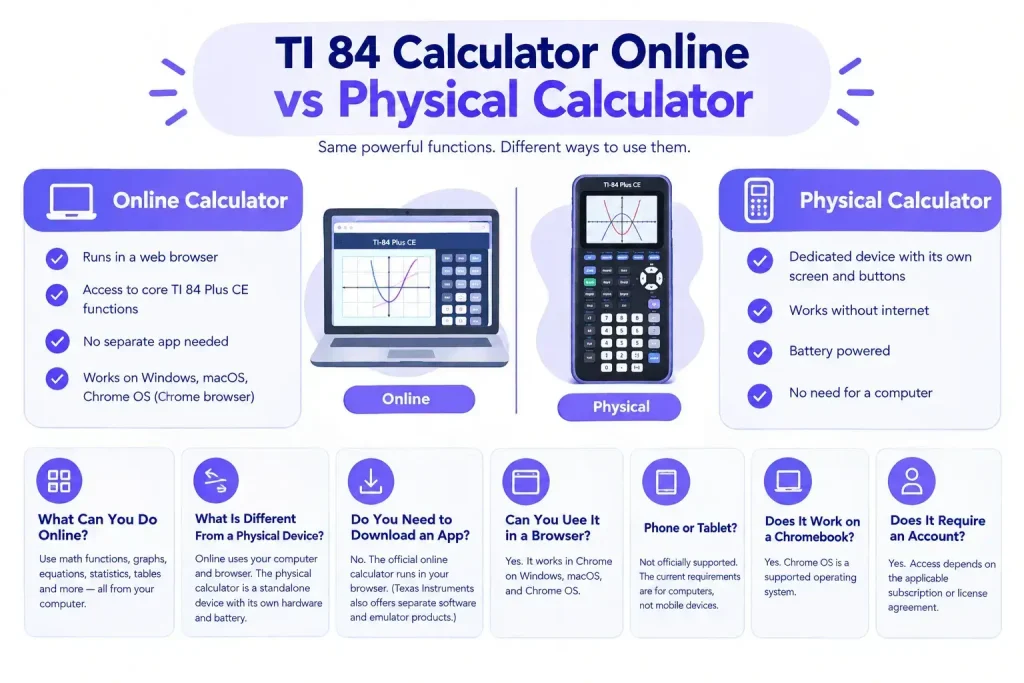
An online calculator can be useful when you want calculator functionality without carrying a physical device. The official TI 84 Plus CE online calculator runs through a supported web browser and provides core calculator functionality similar to the handheld model.
What Can You Do Online?
The online version lets you work with supported math functions, graphs, equations, statistics, tables, and other calculator features from your computer. It is designed to provide a familiar calculator interface while working through a browser.
What Is Different From a Physical Device?
A physical calculator is a dedicated device with its own screen, buttons, battery, and hardware. An online calculator uses your computer and browser instead. The online version can be convenient for practice, homework, classroom demonstrations, and situations where you already have access to a computer.
The physical device can also be used without an internet connection, while the online version requires a reliable internet connection.
Do You Need to Download an App?
You do not need to install a separate desktop app to use the TI 84 Plus CE online calculator. It is accessed through a supported Chrome browser. Texas Instruments also offers separate software and emulator products, but those are different from the online calculator.
Can You Use It in a Browser?
Yes. The online calculator is designed to run in a browser. Texas Instruments currently lists Chrome as the supported browser and provides compatibility for Windows, macOS, and Chrome OS.
Can You Use It on a Phone or Tablet?
The official system requirements currently specify computer based environments rather than phones or tablets. For that reason, mobile compatibility should not be assumed unless the calculator provider specifically confirms support for the particular device and browser.
Does It Work on a Chromebook?
Yes. Chrome OS is one of the supported operating systems for the TI 84 Plus CE online calculator. You can access it through the supported Chrome browser on a compatible Chromebook.
Does It Require an Account?
The official online calculator uses account based licensing. Access therefore depends on the applicable subscription or license arrangement, rather than working as a completely account free tool.
Common Online TI 84 Graphing Calculator Problems and Quick Fixes
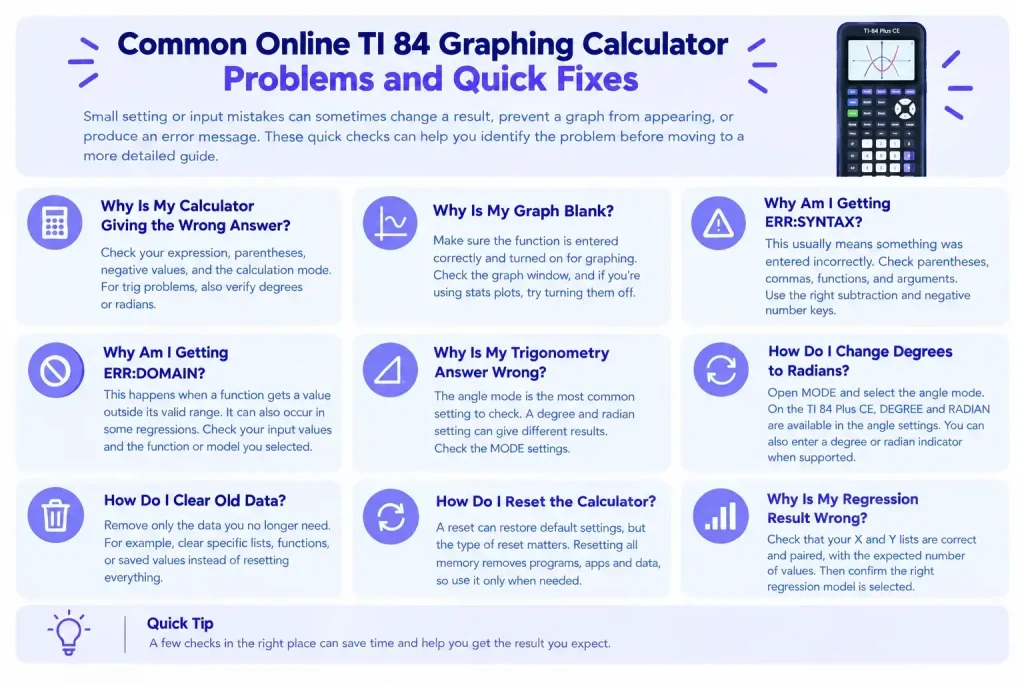
Small setting or input mistakes can sometimes change a result, prevent a graph from appearing, or produce an error message. These quick checks can help you identify the problem before moving to a more detailed guide.
Why Is My Calculator Giving the Wrong Answer?
First check the expression you entered, including parentheses, negative values, and the selected calculation mode. For trigonometric problems, also check whether the calculator is set to degrees or radians.
Why Is My Graph Blank?
Check that the function is entered correctly and that it is turned on for graphing. Also check the graph window because an unsuitable viewing range can make a valid function difficult to see. If statistical plots are causing a problem, turning them off can also help.
Why Am I Getting ERR:SYNTAX?
An ERR:SYNTAX message usually means something in the command or expression has been entered incorrectly. Check parentheses, commas, functions, and arguments. Also make sure you are using the correct subtraction and negative number keys when entering negative values.
Why Am I Getting ERR:DOMAIN?
ERR:DOMAIN can appear when a function receives a value outside its valid range. It can also occur with some statistical regression problems when the selected data does not fit the requirements of the regression model. Check the input values and the type of function or regression you selected.
Why Is My Trigonometry Answer Wrong?
The most common setting to check is the angle mode. A problem entered in degrees can produce a different result when the calculator is set to radians, and the same applies in reverse. Check the MODE settings before recalculating.
How Do I Change Degrees to Radians?
Open the MODE settings and select the required angle mode. On the TI 84 Plus CE, the DEGREE and RADIAN options are available in the angle settings. You can also enter a degree or radian indicator directly when supported by the expression.
How Do I Clear Old Data?
If old lists, functions, or saved values are affecting a calculation, clear the specific data you no longer need rather than resetting everything. For example, statistical lists can contain previous data that affects a new calculation.
How Do I Reset the Calculator?
A reset can restore default settings, but the type of reset matters. Resetting all memory permanently removes stored programs, apps, and data, so it should not be the first choice if you only need to correct a setting or clear a small amount of data.
Why Is My Regression Result Wrong?
Start by checking the data entered into the lists. Make sure the X and Y values are paired correctly and that both lists contain the expected number of values. Then confirm that you selected the appropriate regression model for your data.
TI 84 Keyboard and Function Guide
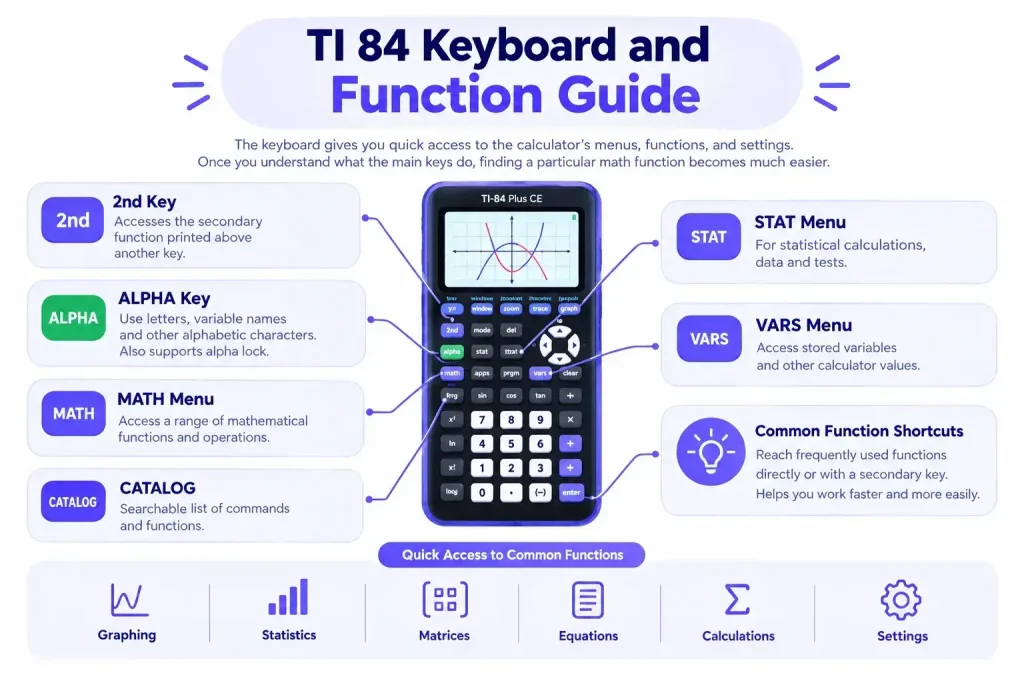
The keyboard gives you quick access to the calculator’s menus, functions, and settings. Once you understand what the main keys do, finding a particular math function becomes much easier.
2nd Key
The 2nd key activates the secondary function printed above another key. Press 2nd first, then press the key whose secondary function you want to use. For example, 2nd followed by the appropriate key can open additional menus or commands.
ALPHA Key
The ALPHA key gives access to letters and other functions printed above the keys. It is useful when entering variable names, list names, or other alphabetic characters. You can also use the alpha lock when entering several letters in sequence.
MATH Menu
The MATH menu provides access to a range of mathematical functions. Depending on the problem, you can use it for numerical operations and other supported math functions without searching through the entire keyboard.
STAT Menu
The STAT menu is used for statistical calculations and data related tasks. It provides access to the Stat List Editor, statistical calculations, tests, and regression functions supported by the calculator.
VARS Menu
The VARS menu provides access to stored variables and other calculator values. It is particularly useful when working with functions, graphing, and calculations that require a previously stored value or expression.
CATALOG
The CATALOG contains a searchable list of commands and functions available on the calculator. When you know the function you need but do not remember its exact keyboard location, the catalog can provide a quicker way to access it.
Common Function Shortcuts
Several functions can be reached directly through the keyboard or by using the secondary function printed above a key. Learning a few frequently used shortcuts can reduce the number of menu steps needed for everyday math work. The calculator also provides shortcut menus for certain functions and interactive features.
TI 84 Calculator Cheat Sheet
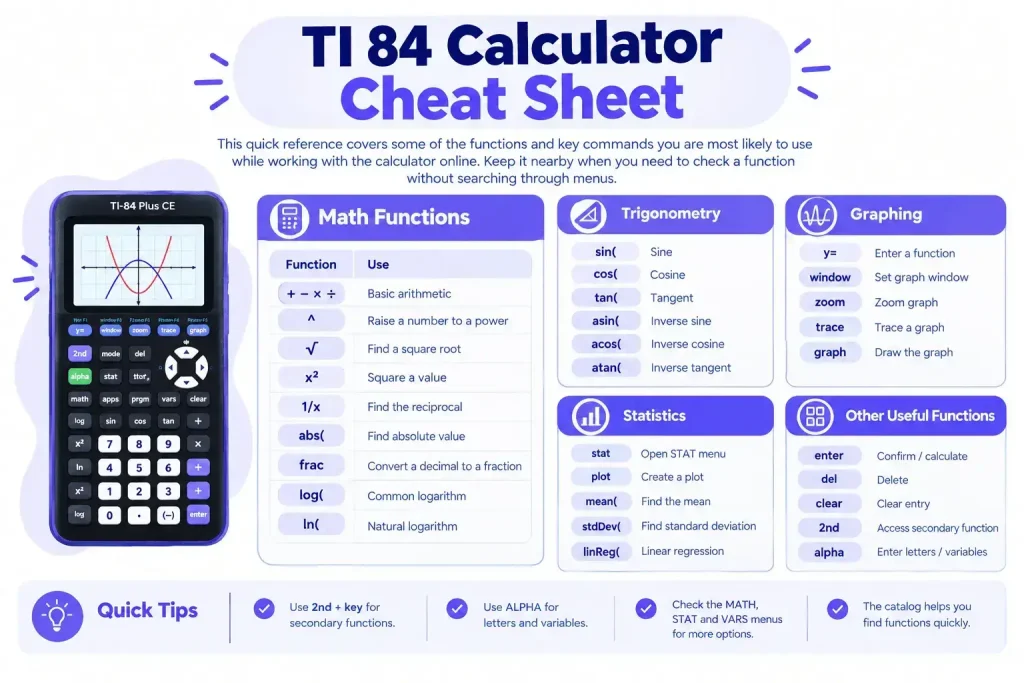
This quick reference covers some of the functions and key commands you are most likely to use while working with the calculator online. Keep it nearby when you need to check a function without searching through menus.
Math Functions
| Function | Use |
| + − × ÷ | Basic arithmetic |
| ^ | Raise a number to a power |
| √ | Find a square root |
| x² | Square a value |
| 1/x | Find the reciprocal |
| abs( | Find absolute value |
| frac | Convert a decimal to a fraction |
| log( | Common logarithm |
| ln( | Natural logarithm |
Graphing Functions
Use the graphing screen to enter equations and view their curves. You can enter functions in Y= and use the graph controls to adjust the viewing window.
| Function | Use |
| Y= | Enter graphing equations |
| WINDOW | Set the graph viewing range |
| ZOOM | Change the graph view |
| TRACE | Move along a plotted graph |
| GRAPH | Draw the entered functions |
| TABLE | View function values in a table |
Statistics Functions
Statistics tools are useful for working with data sets, averages, distributions, and regression problems.
| Function | Use |
| 1 Var Stats | Mean, standard deviation, and related values |
| 2 Var Stats | Statistics for two data sets |
| LinReg | Linear regression |
| QuadReg | Quadratic regression |
| Med | Find the median |
| mean | Calculate the average |
Trigonometry Functions
Before using sine, cosine, or tangent, check whether your calculation requires degrees or radians. The angle mode can change the result.
| Function | Use |
| sin( | Sine |
| cos( | Cosine |
| tan( | Tangent |
| sin⁻¹( | Inverse sine |
| cos⁻¹( | Inverse cosine |
| tan⁻¹( | Inverse tangent |
Calculus Functions
For calculus work, common operations include derivatives, numerical integration, limits, and graph based analysis. The exact options available can depend on the calculator model or simulator being used.
| Function | Use |
| nDeriv( | Numerical derivative |
| fnInt( | Numerical integral |
| ∫ | Integral notation where supported |
| d/dx | Derivative notation where supported |
Common Keyboard Shortcuts
Keyboard support can make an online calculator faster to use, especially when entering longer expressions.
| Shortcut or Key | Common Action |
| Enter | Submit or calculate |
| Backspace | Remove the previous character |
| Delete | Remove selected input |
| Esc | Close or cancel an active control |
| ↑ ↓ | Move through available input or history where supported |
| Ctrl + C | Copy selected text |
| Ctrl + V | Paste copied text |
The available keyboard controls can vary between online calculator tools, so use the on screen keys when a shortcut does not respond as expected.
Error Messages
An error usually means the entered expression or selected setting needs to be checked. Common messages include:
| Error | What to Check |
| Syntax Error | Check brackets, operators, and the way the expression was entered |
| Domain Error | Check whether the value is valid for the selected function |
| Divide by 0 | Check for a zero value in the denominator |
| Argument Error | Check the number or type of values entered |
| Dimension Error | Check the size of lists or matrices being used together |
| Window Range | Check the graph window settings |
If an error appears, go back through the expression one part at a time. A missing bracket, incorrect angle mode, or unsupported operation is often enough to cause the problem.
Who Can Use an Online TI 84 CE Plus Calculator?
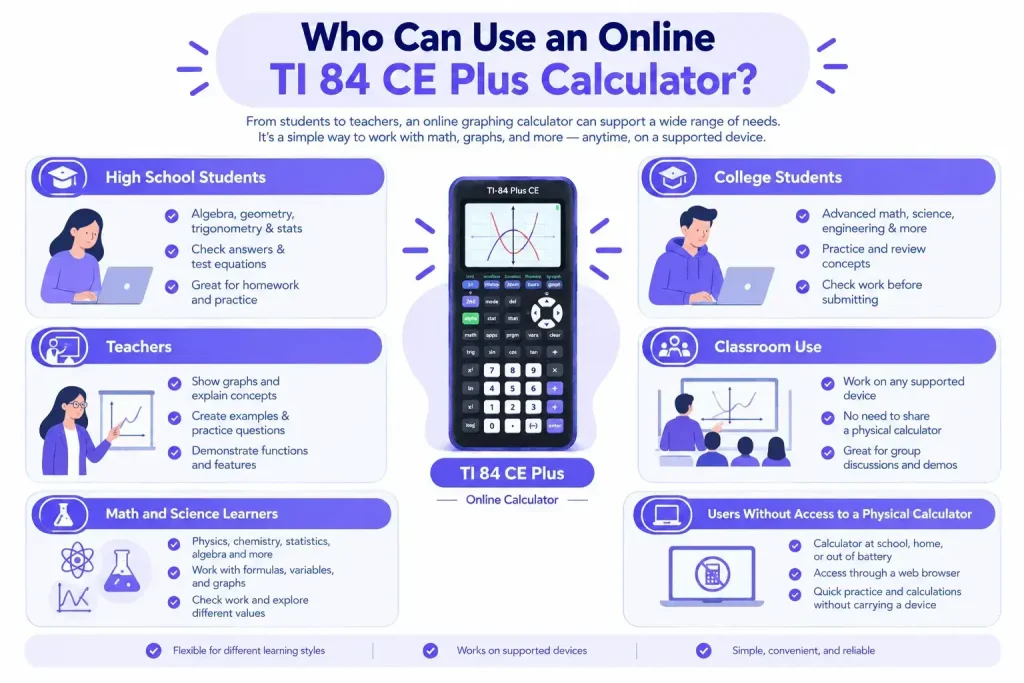
An online graphing calculator can be useful for anyone who needs a familiar set of math functions without having a physical device nearby. The interface can help with everyday calculations as well as schoolwork involving equations, graphs, statistics, and other topics.
High School Students
High school students can use an online calculator while practicing algebra, geometry, trigonometry, and introductory statistics. It can also help when checking an answer, testing an equation, or looking at how a function behaves on a graph.
For homework and practice, having the calculator available in a browser can be convenient when a physical calculator is at home or being used by someone else.
College Students
College courses often require more advanced calculations. Students studying mathematics, science, engineering, or related subjects may use graphing and statistical functions as part of their coursework.
An online version can be useful for practice sessions, reviewing concepts, or checking calculations before submitting an assignment. Students should still follow their course or exam rules about which calculators are allowed.
Teachers
Teachers can use an online calculator when explaining a new topic to a class. A graph can be displayed while discussing an equation, or a set of data can be entered during a statistics lesson.
It can also be useful when preparing examples, creating practice questions, or showing students how different calculator functions work.
Classroom Use
A browser based calculator can fit well into classrooms where students already have access to computers or other supported devices. There is no need to pass a single physical calculator around the room when each student can open the tool on their own screen.
Teachers can also demonstrate calculations on a larger display while students follow the same steps on their devices.
Math and Science Learners
The calculator can be helpful beyond a single math class. Learners working with physics, chemistry, statistics, algebra, or other science topics may need calculations involving formulas, variables, graphs, or numerical values.
For independent study, it can serve as a convenient resource for checking work and experimenting with different values.
Users Without Access to a Physical Calculator
Sometimes a physical calculator simply is not available. It may be at school, left at home, out of battery, or needed by another person.
In those situations, an online option gives users access through a web browser on a supported device. This makes it practical for quick practice and calculation work without requiring a separate calculator to be carried around.
Is an Online TI 84 Plus Graphing Calculator Allowed on Exams?
Whether an online calculator can be used during an exam depends on the rules set by the exam provider, school, college, or instructor. A calculator that works for homework may not be permitted during a test, and some exams allow only specific calculator models or approved software.
Always check the current rules before relying on an online calculator during an assessment.
Can You Use It for Homework?
In most cases, homework rules are set by the teacher or course instructor. If online calculators are permitted, you can use one to work through problems, check calculations, or practice using different functions.
Your instructor may also ask you to show the steps used to reach an answer, so using a calculator should not replace understanding the underlying math.
Can You Use It in Class?
Classroom policies can vary. Some teachers may allow students to use an online calculator during practice or demonstrations, while others may prefer a physical calculator or a specific device.
If you are unsure, ask your teacher before using an online version during classwork or a quiz.
Can You Use It on Standardized Tests?
Standardized tests have their own calculator policies, and those policies can differ between tests and may change over time. Some tests allow certain physical calculators, while others may restrict calculator use or provide an approved calculator within the testing system.
An online calculator should not be assumed to be permitted simply because it has the same functions as an approved physical model.
Check Your Specific Exam Rules
Before an exam, check the official instructions for that particular test. Look for information about permitted calculator models, calculator apps, browser based tools, and any restrictions on electronic devices.
If the rules are unclear, confirm them with the exam provider or your teacher before test day. This is especially important for standardized exams, where using an unapproved calculator can create a problem even if the calculator itself is mathematically suitable.
TI 84 vs Other Online Math Tools
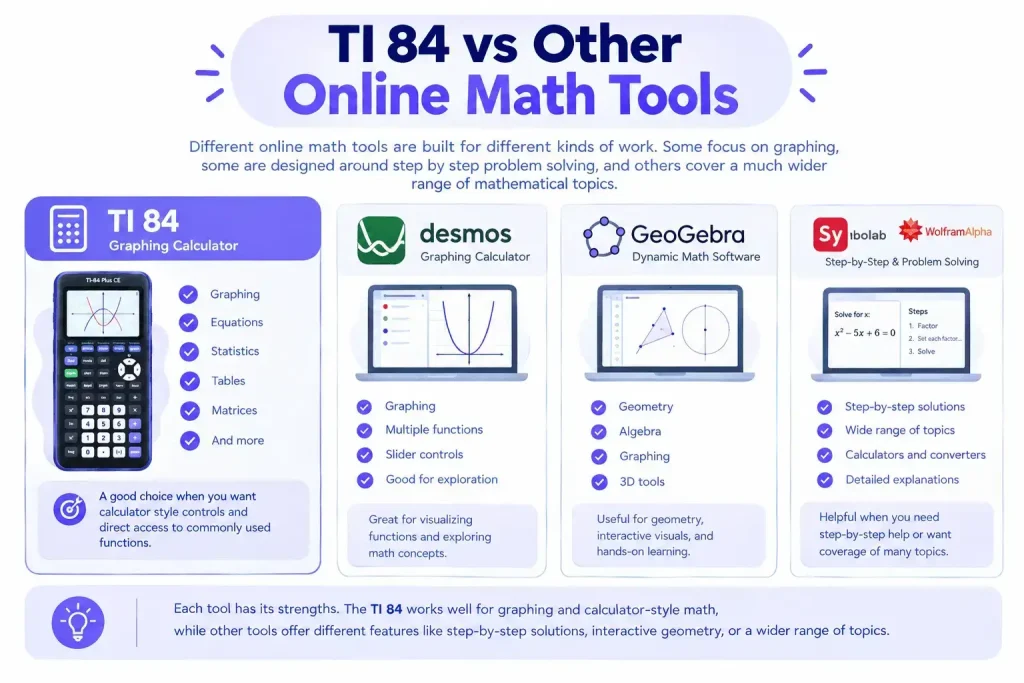
Different online math tools are built for different kinds of work. Some focus on graphing, some are designed around step by step problem solving, and others cover a much wider range of mathematical topics.
A graphing calculator interface can be a good fit when you want calculator style controls and direct access to functions commonly used in school or college math.
TI 84 vs Desmos
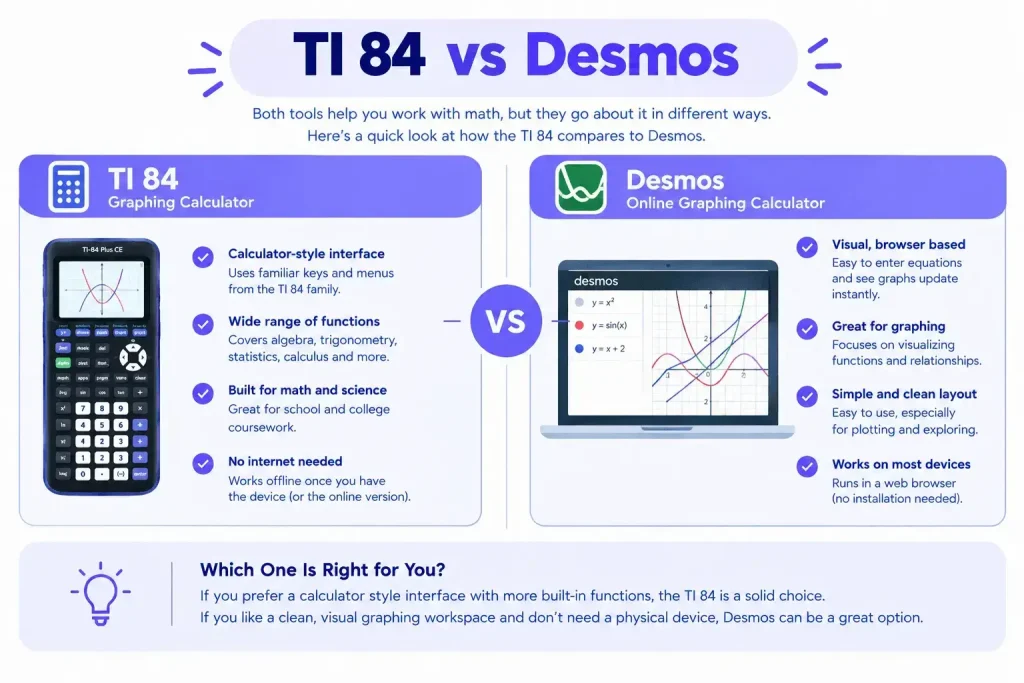
Desmos is well known for its browser based graphing experience. Its interface makes it easy to enter equations and see graphs update quickly, which can be useful when studying functions and visualizing relationships.
A TI 84 style calculator is more familiar to users who are used to the layout and functions of a traditional graphing calculator. The better choice depends on whether you prefer a calculator style interface or a more visual graphing workspace.
TI 84 vs GeoGebra
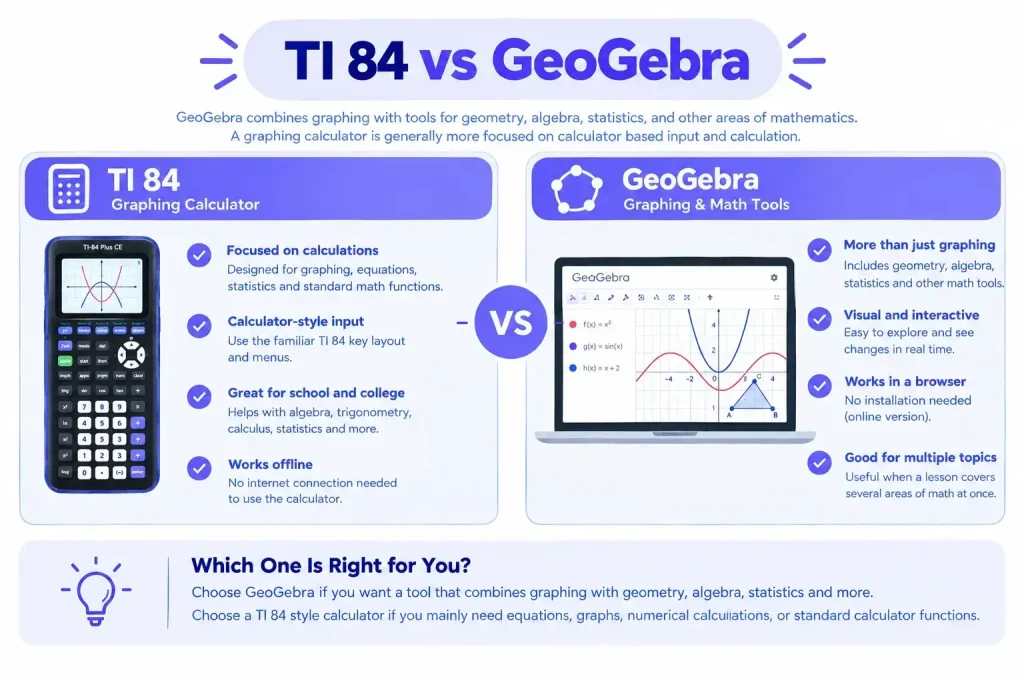
GeoGebra combines graphing with tools for geometry, algebra, statistics, and other areas of mathematics. It can be useful when a lesson involves several types of mathematical representations at once.
A graphing calculator is generally more focused on calculator based input and calculation. Students who mainly need equations, graphs, numerical calculations, or standard calculator functions may prefer that type of interface.
TI 84 vs Symbolab
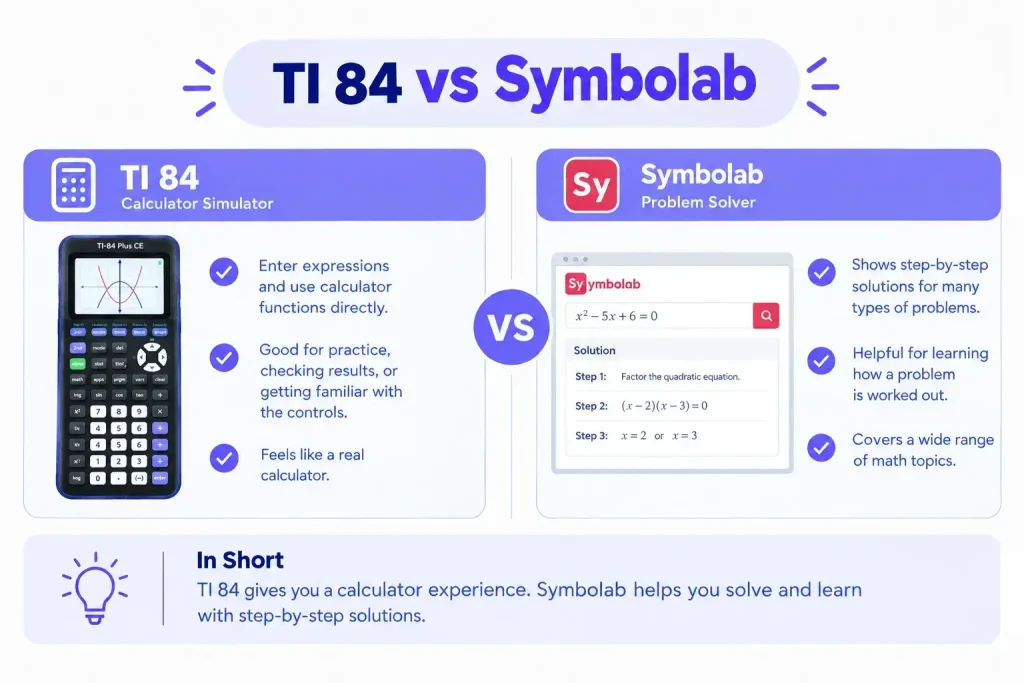
Symbolab is designed around solving mathematical problems and showing solution steps for many types of equations and calculations. This can be helpful when learning how a problem is worked out.
A calculator simulator has a different purpose. It lets users enter expressions and use familiar calculator functions directly. For practice, checking a result, or becoming comfortable with calculator controls, this approach can be more suitable.
TI 84 vs Wolfram Alpha
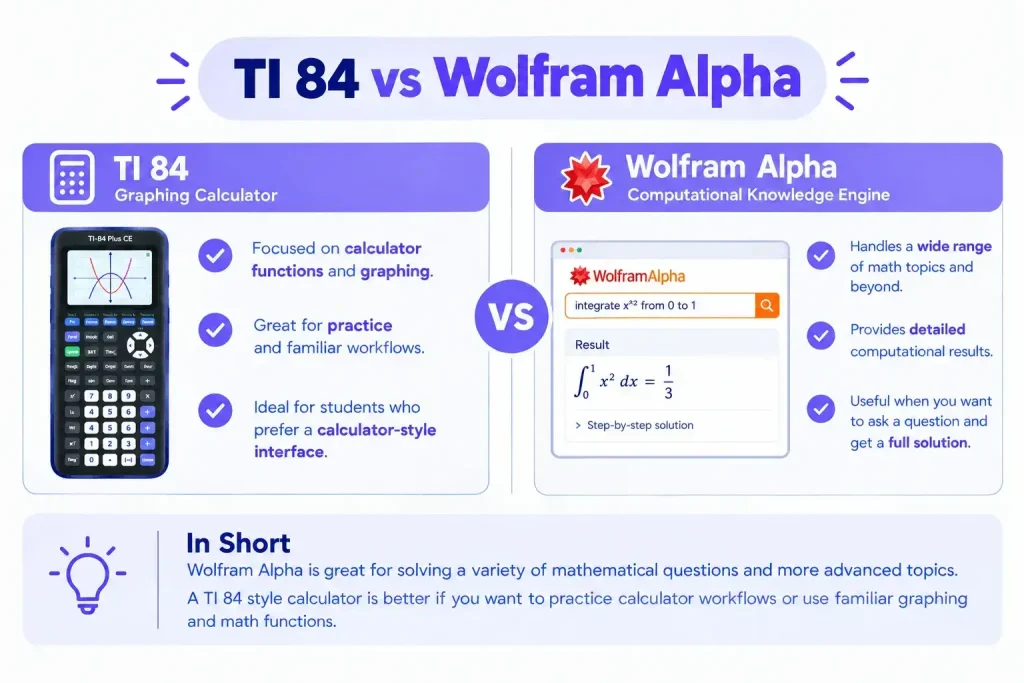
Wolfram Alpha can handle a broad range of mathematical questions and is also used for topics beyond basic school mathematics. It is useful when you want to enter a question or expression and receive a detailed computational result.
A graphing calculator focuses more closely on the experience of using a physical calculator. That can make it useful for students who want to practice calculator based workflows or work with familiar graphing and math functions.
When Should You Use a Graphing Calculator?
A graphing calculator can be a good option when your work involves functions, equations, graphs, statistics, or trigonometry. It can also help when you want to practice using the same type of controls found on a physical graphing device.
For a quick calculation, a basic calculator may be enough. For step by step explanations, a problem solving platform may be more useful. When the task involves plotting functions and working through calculator style operations, a graphing calculator can be a practical choice.
TI 84 and TI 89: What’s the Difference?
The TI 84 and TI 89 families are both graphing calculators, but they are designed with different levels of mathematical work in mind. The right choice depends on the subjects you are studying and the functions you need.
TI 84 vs TI 89
The TI 84 family is widely associated with high school mathematics, graphing, statistics, algebra, and trigonometry. Its controls are relatively straightforward, making it a practical option for students who are learning to work with a graphing calculator.
The TI 89 family is aimed at more advanced mathematics. Models such as the TI 89 Titanium provide symbolic math capabilities, which can be useful for working with algebraic expressions, calculus, and other higher level problems.
The main difference is not simply the number of functions available. The two families approach mathematical work differently. The TI 84 is well suited to numerical calculations and graphing, while the TI 89 can work with symbolic expressions in ways that are useful for advanced courses.
TI 84 Plus CE vs TI 89 Titanium
The TI 84 Plus CE is a color graphing calculator with a modern display and a design suited to everyday school mathematics. It is commonly used for functions, statistics, graphing, algebra, and trigonometry.
The TI 89 Titanium is more focused on advanced mathematical work. Its symbolic capabilities can be useful when a course involves calculus or algebraic manipulation beyond what students typically need in earlier classes.
For someone choosing between a TI 84 Plus CE and a TI 89 Titanium, the course requirements should come first. A more advanced calculator is not automatically the better choice if the required classes only call for the functions available on the TI 84 family.
Which Calculator Is Better for High School?
For many high school math courses, a TI 84 model is a practical choice. Students may use it for graphing functions, solving numerical problems, working with statistics, and checking calculations.
The exact requirements still depend on the school and course. Some classes may recommend a particular model, while others may allow several graphing calculators.
Which Is Better for College Math?
College mathematics covers a much wider range of subjects, so the answer depends heavily on the course. A TI 84 Calculator can be enough for courses involving standard graphing, statistics, algebra, and numerical calculations.
Students taking more advanced calculus or courses that require symbolic manipulation may find the capabilities of a TI 89 more relevant. Before choosing a calculator, check the requirements for the specific class. Some instructors also restrict calculator use during assignments, quizzes, or exams.
The important point is to match the calculator to the mathematics you actually need to do. A familiar and permitted calculator is often more useful than choosing a model simply because it offers more advanced functions.